Image generation on AI Moldova: a practical guide with examples
Turn a description into an image on AI Moldova. Learn how to choose style, format and quality, with prompt examples and a real result from the generator.
A written idea can become an image
Have an idea for a post, presentation or character but need an image to begin with? On AI Moldova, describe what you have in mind and generate an initial visual directly in your browser. Choose a direction, format and quality level available to your plan, then review and download the result. It is a practical way to explore an idea before investing time in a full campaign or a more extensive design project. You can begin with a clear subject rather than a finished visual brief.
The image generator complements the platform’s chat, documents and creative tools. Prepare a campaign concept or brief in chat, then turn the description into a visual in the image studio. The feature is useful for entrepreneurs in the Republic of Moldova, creators, freelancers and anyone who wants to experiment. Start with a simple request, learn from the result and refine the direction at your own pace. A first version gives you something concrete to assess and discuss.
The screenshot example: a raccoon with personality
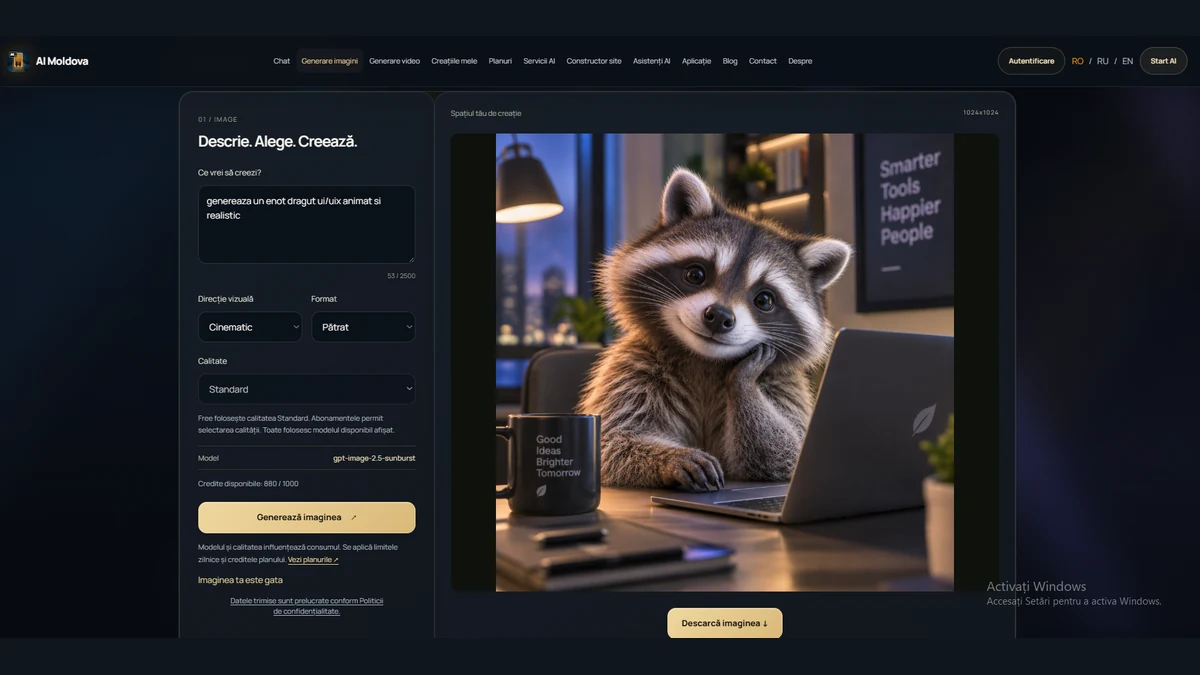
The image accompanying this article is a screenshot of the AI Moldova generator. The description and selected options appear on the left, while the result appears on the right: a friendly raccoon next to a laptop in a warmly lit workspace. Expression, fur, setting and lighting show how an animated character can be explored with realistic detail. The screenshot demonstrates the feature visually; its controls are not interactive inside the article. To create your own version, open the actual image studio.
You do not need to copy this idea exactly to create something interesting. Imagine a mascot for your project, an advertising setting or a composition for a presentation. The output depends on the description, settings and model interpretation, and two generations can look different. The raccoon example is a starting point for imagination rather than a promise that any request will reproduce an identical scene or character. Use it to identify the qualities you want in your own visual.
Use the generator step by step
Open Image generation from the menu or select Generate an image in the dedicated homepage section. In What would you like to create?, describe your subject and intended atmosphere. Choose a visual direction, format and the quality allowed by your plan. The interface shows the available model and credit information. Check the selections before starting, especially when the image will occupy a space with a specific shape or layout. Knowing where it will appear helps you describe the composition more effectively.
Select Generate image and wait for the result in your creative workspace. Processing can take time, and a more complicated description does not automatically produce a better image. When it is ready, inspect the result at a useful size and use the download button. If an error occurs, the description remains in the form so you can try again. Avoid immediately submitting several identical requests. Check the status of the one already started before deciding whether another attempt is needed.
Write a clear prompt without unnecessary complexity
A useful description answers a few questions: what appears, where is the subject, what style do you want and how should the light look? Add composition and anything that should be avoided. For example: “A friendly raccoon with expressive eyes beside a laptop in a modern office. Warm lamplight, realistic fur detail, a welcoming atmosphere and a clean composition, without text in the image.” This provides enough specific direction to guide the result while keeping the central subject easy to understand.
Write in Romanian, Russian or English, choosing the language in which you express the idea most clearly. Avoid contradictory instructions. An extremely minimalist image filled with numerous objects may be difficult to control. For the first version, keep one main subject and two or three important details. If you need room for a headline, explain where the empty area should be before generating. This is easier than trying to force a finished composition into a layout it was not designed for.
Choose a visual direction that supports the idea
The studio offers directions such as Cinematic, Advertising, Product, Editorial and Minimalist. These help establish the intended look. Cinematic may suit atmosphere and expressive lighting; Product, objects and commercial presentations; Editorial, a concept accompanying an article. Minimalist is useful when you want fewer elements and more open space. Choose according to the image’s purpose and the message that will appear beside it. A style is most helpful when it supports a specific communication task rather than being selected only for its name.
The selected direction and your prompt work together. For Product, describe the material, surface and intended lighting. For Cinematic, mention time of day, colour temperature and perspective. Keep the direction coherent across materials belonging to the same campaign. A collection can feel more considered when lighting, background and palette are related, even if the subjects differ. Save these preferences with your brief so you can refer to the same visual language when preparing another image later.
Choose the format for the publishing context
Square, landscape and portrait formats are available. Square can suit a social post or product preview. Landscape offers room for a banner, cover or presentation, while portrait supports vertical compositions. Think about the format before generating: the same character may need different positioning in a narrow column and on a wide screen. Explain whether the subject should be central or leave space on one side. This turns format selection into part of the composition rather than a final technical adjustment.
The generator’s supported dimensions do not necessarily match every social platform requirement. Check the intended destination and adapt the image in an editor if other proportions are needed. Leave space around the subject so a later crop does not remove an essential detail. For advertising, plan where the headline or logo will sit. A visually appealing composition becomes more useful when it works in its final context and stays understandable on the screen where people will actually see it.
Quality and the model shown in the studio
The Free plan uses Standard quality, while subscriptions allow selection of the available quality levels. Options such as Standard, Balanced and Detailed appear according to access. The effective model is displayed separately. AI Moldova uses GPT Image family models available to the project, and their availability can evolve. For a current choice, check the studio rather than relying only on a model name in an older screenshot. The displayed information is more relevant to your next request than a previously captured example.
Explore an idea using the option that suits your budget. Higher quality may help with detail, but it does not automatically solve an unclear composition or contradictory description. Once you identify a direction you like, prepare a more deliberate variation with a refined prompt. Inspect eyes, hands, object edges, reflections and any lettering. Reviewing the output matters at every quality level. Decide whether the image fulfils the original purpose before spending more credits on another version of the same concept.
Image allowances and shared credits
Image generation uses both the daily allowance and the plan’s shared credit budget. The first limit reached applies. Consumption can vary with model, format and quality, so one request should not automatically be treated as one credit. The available account balance also supports other eligible platform features. If you have used chat or document generation extensively, the remaining image budget may differ from the initial amount. Consider the whole workflow when planning a campaign, including the text and supporting materials you may also need.
The Plans page shows current allowances and conditions for Free and paid subscriptions. Free also depends on the platform’s available shared free budget. For additional usage, compare a subscription with the available credit packs, remembering that daily limits still apply. The studio shows model, quality and balance information; image consumption depends on the selected settings. Plan a number of variations and reserve some budget for the changes that matter most. Review the current plan details instead of assuming every image has the same cost.
Three prompt ideas for local projects
For a café in Chișinău, try: “Two cups of coffee on a table beside a large window, natural morning light, warm tones and a welcoming atmosphere. Advertising composition with empty space on the right for a headline, without generated text.” For a product: “A cosmetic bottle on a pale stone surface, a cream background, soft shadows and subtle reflections, studio photography, with the object clearly centred.” Both descriptions establish the subject, environment and purpose without requesting too many unrelated elements.
For a digital services presentation, try: “A friendly raccoon beside a laptop in an elegant workspace, three-dimensional animation detail, realistic materials and evening light. An orderly background, a dark blue and gold palette, without logos or text.” Adapt every example to your business and audience. When showing a real product or location, check how faithfully the visual represents it and use authentic photography when exactness is essential. A useful advertising image should help explain the actual offer rather than create expectations that the business cannot fulfil.
Review, refine and download a useful version
After the first generation, note what works and what needs changing. You may like the character but find the background crowded, or prefer the lighting while needing more space around the subject. Change one or two requirements to understand their effect. Another generation is a new version and may alter other details too. Keep successful descriptions separately, particularly when developing a campaign series. A short record of what you selected makes it easier to return to a direction without reconstructing the entire brief.
Download the image to your device and prepare it for use. Add copy, a logo or exact offer details in an editor where spelling and positioning remain under your control. New images generated while signed in are saved in My creations; older results and generations made without an account are not automatically recovered into the gallery. Save important assets locally and organise versions so the final approved image can be found easily when it is time to publish or share it with your team.
A good image can become the starting point for video
An image can also begin an idea in motion. AI Moldova has a separate video generation page with Image to video. To explore this direction, download your chosen image, open the video generator and upload it in the dedicated area. Describe the desired movement: a slow camera approach, subtle lighting changes or restrained subject motion. Use a compatible model and review the estimate before starting. This is a separate creation step, allowing you to decide whether the still image is ready to develop further.
Video has its own access conditions. The free video trial is available once for a verified account before its first completed video, using text input and fixed settings. Animating an image requires credits from an active paid plan or separately purchased credits. The two studios help you choose whether the project needs a still image, a clip or both. Plan the image and motion stages together, while keeping control of the steps, settings and budget used for each result.
Create a visual with a clear purpose
Before publishing, inspect the image where it will actually be seen: on a phone, inside an article, in a presentation or as part of an advertisement. Check that the subject is understandable, the headline is readable and the asset fits the rest of your visual identity. Use references and elements for which you have the necessary rights. Commercial imagery should represent the offer accurately, and an invented scene should be presented appropriately for its context. These decisions are part of preparing the final asset.
AI Moldova’s image generator gives you an accessible starting point for this work. Describe what you imagine, choose a direction and look at the first version. It might be a raccoon with personality, a composition for a local campaign or a setting you had not yet found the words to describe. Open the studio, check the available options and turn the idea into an image you can review, download and use in your project. Refine the next version from what you learn.
Turn your idea into an image
Describe what you want to create, choose a style and format, then review your result in the studio.
Generate an image